
Roughly 1.4 billion iPhones are in active use worldwide, and Apple has been making them with very good cameras for over a decade. Statistically, you’ve owned two or three. The one in your drawer right now — the iPhone 11, the X, the 8 you handed down and then took back when your kid upgraded — has a sensor and an AI chip that are wildly over-spec’d for indoor security. It is, objectively, a better camera than the $99 plastic box you’d otherwise have to buy.
The only thing missing is the software that makes it act like a security camera. That’s what RECAM is. This guide walks you through the whole setup — the bits people normally skip over, like where to point it and how to keep it charged — so you don’t get stuck halfway through.
Got an Android in the drawer instead? This guide is the iPhone version. Here’s the Android version of this guide — same three minutes, same encrypted stream.
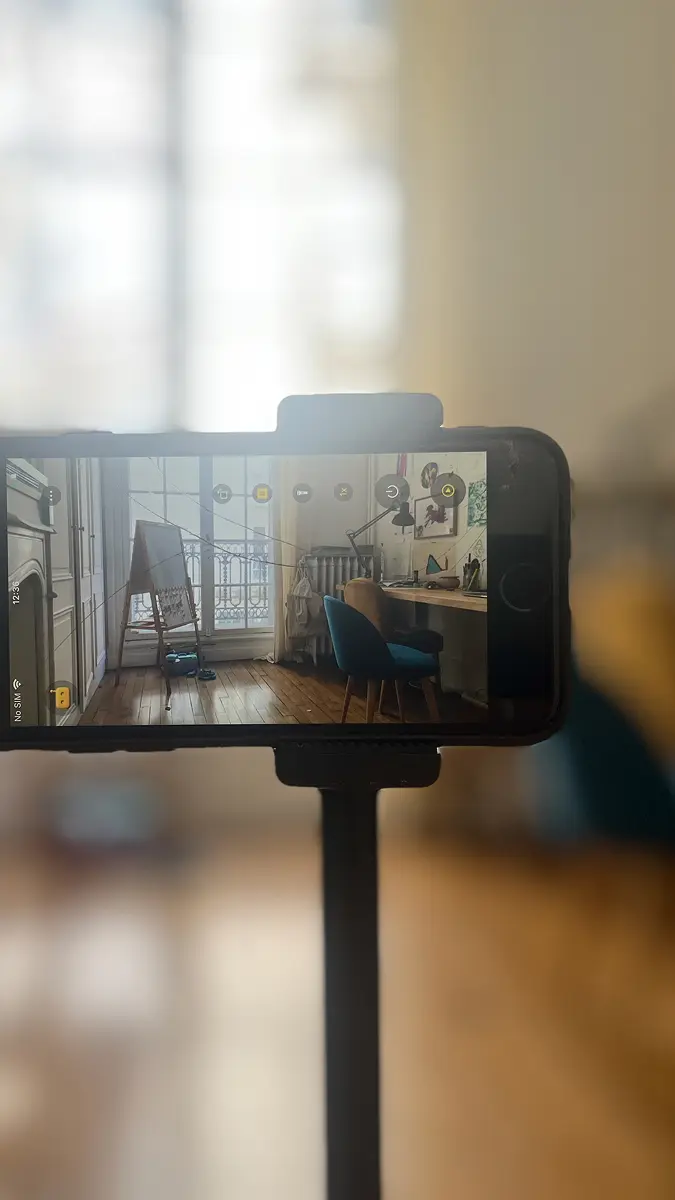
Why an Old iPhone Makes a Good Security Camera
Three reasons most people don’t realise:
- The camera is genuinely good. An iPhone 11 has a 12MP sensor with optical image stabilisation, a wide field of view, and dynamic range that handles a backlit window better than 95% of consumer security cameras. Apple has been over-engineering iPhone cameras for marketing reasons; you’re inheriting the spillover.
- The AI chip is overkill. Every iPhone from the XS onward has a Neural Engine that runs vision models in real time at a fraction of a watt. That’s the chip Face ID runs on. RECAM uses it to do person and sound detection without ever sending a frame to the cloud.
- The price is zero. You already own it. A camera you already own is the only camera that doesn’t cost anything to add.
The thing that isn’t there yet is the security-camera software — a way to make the iPhone run continuously, watch for meaningful events, and push them to your main phone with encrypted live video. That’s the gap. RECAM fills it.
What You Need (and What You Don’t)
You need:
- A spare iPhone or iPad running iOS 16.3 or later (iPad: iPadOS 16+). iPhone 8, X, XR, 11, SE 2nd gen and up all qualify.
- A charging cable and outlet within reach of where the phone will sit.
- Your main iPhone as the viewer, also on iOS 16.3+.
- A home Wi-Fi connection both phones can join.
You do NOT need:
- A hub, base station, or bridge.
- A separate account or “cloud plan.”
- Ethernet wiring, a NAS, or a home server.
- A new camera. The whole point.
Choose the Room and the Angle
Before you install anything, pick where the camera will live. The single biggest mistake people make is mounting first and thinking about field of view second. Better to walk into the room and ask:
- What am I actually trying to see? The front door from inside? The hallway leading to the bedrooms? The crib? The garage entry? Frame the question first.
- Where can I plug it in? A camera that runs continuously needs continuous power. Pick a spot within a cable’s reach of an outlet — or use an extension lead deliberately routed.
- Where can I prop the phone? A bookshelf at chest height, a windowsill, the top of a wardrobe, the corner of a kitchen counter. Higher angles see more without showing faces too close.
- Will glare or backlight wreck the shot? A phone facing a bright window will silhouette anyone in the room. Either point away from the window, or position the phone at the window pointing outward.
Spend two minutes on this and the rest of the setup is easy. Skip it and you’ll be re-mounting at midnight.
The 3-Minute Setup, Step by Step
- Wake the spare iPhone. Charge it to at least 50%. If it’s a hand-me-down you want fully fresh, do a factory reset first. Confirm it’s on iOS 16.3 or later — Settings → General → Software Update.
- Install RECAM on both phones. Open the App Store on the spare and on your main phone. Search “RECAM” or tap this link. Install on both.
- Open RECAM on the spare and choose “Use this iPhone as a camera.” Grant camera and microphone permission. The app will display a pairing code.
- Open RECAM on your main phone and choose “Pair with a camera.” Scan or enter the pairing code from the spare. The two devices exchange keys and lock in an end-to-end encrypted stream — only the two of you hold the keys, so anything that helps relay the stream stays blind to it.
- Prop the camera in position and plug it in. Whatever mount you chose in the previous section. Make sure the screen is unlocked and RECAM is in the foreground (the app handles staying active for you).
- Walk into frame to test. Your main phone should buzz within a second with a smart-alert notification and a tap-to-watch live view. If it does, you’re done. If it doesn’t, jump to troubleshooting.
That’s the whole thing. From “downloading the app” to “smart alert on your main phone” is genuinely under three minutes the first time, faster on the second camera.
Mounting and Power: The Practical Bit
Three mounting setups cover most of what people actually do:
- Silicone stand + charging cable. The basic setup. A €5 silicone stand on a shelf, charging cable routed down the back. Works for nurseries, hallways, garage interiors, home offices. Easy to reposition.
- Window suction mount. For watching a driveway, a garden, a shopfront from inside the glass. A suction phone mount holds the phone at the window with the camera pointing out. Plug into a nearby outlet. Pick a window without strong glare or condensation.
- Magnetic MagSafe puck on a wall plate. For a tidier permanent install: stick a MagSafe-compatible puck on a wall plate or shelf bracket, snap the iPhone on, run the cable behind the wall plate. Looks like it was designed in.
For power: a continuous wall outlet beats a battery-only setup every time. If you’re tempted to “just charge it once a day,” trust us — you won’t. Cameras work because they’re always on. Plug it in and forget it.
Multi-Room: Turning 2–3 iPhones Into Zones
Most households have more than one drawer iPhone. The second one is a hallway camera. The third is a nursery. Each pairs independently with your main phone and shows up as its own tile in the viewer.
A few patterns that work well:
- Front door + back door. Two windowsill setups, two encrypted streams, one viewer phone. Covers both entry points without a single Ring on the wall.
- Nursery + living room. The nursery camera doubles as a baby monitor with sound alerts (we wrote a longer piece on that use case here); the living room camera is the night-time check.
- Indoor garage + workshop. Two cameras, both on the same Wi-Fi, monitoring tools and bikes — good for freelancers and creators.
There’s no per-camera fee. The Pro subscription ($4.99/month or $49.99/year) is per-account, not per-iPhone.
Troubleshooting
The three things that trip people up:
- The pairing won’t complete. Make sure both phones are on the same Wi-Fi during the initial pair. Once paired, they can roam onto different networks.
- Live view drops or alerts are slow. Remote viewing always works, but a direct connection is fastest. If your router supports UPnP/IGD (most consumer routers do, out of the box), RECAM uses it for the lowest latency; otherwise it falls back to the encrypted relay, which can add a little delay. See the technical prerequisites guide to optimize the direct path.
- The camera-side iPhone keeps locking the screen. Go to Settings → Display & Brightness → Auto-Lock → Never, while the phone is in camera duty. RECAM will keep the app active; you just need to stop iOS from sleeping the screen.
Plug in the iPhone You Already Own
You don’t need a hardware purchase, a hub, or a learning curve. You need a drawer, a charging cable, and three minutes.
Make the iPhone you stopped using do something useful again.
Get RECAM — free to start; all of Pro free for 3 days with the yearly plan, then $49.99/year (monthly $4.99, no trial); cancel anytime, no cloud copy.
FAQ
Which iPhones work as a RECAM camera?
Any iPhone or iPad on iOS 16.3 / iPadOS 16 or later. Older models like the iPhone 8, X, XR, and 11 all work well — their cameras and Neural Engines are still excellent for indoor security. The viewer phone (the one in your pocket) needs the same OS minimum.
Do I need a stand or mount?
Anything that holds the phone upright works. A cheap silicone stand, a magnetic MagSafe puck, a flexible tripod, or a window suction mount are the most common solutions. Just make sure the lens has a clear view and the phone is plugged in.
Will the iPhone overheat running 24/7?
Not under typical indoor conditions. RECAM is designed to run continuously and the on-device AI is power-efficient. Keep the phone out of direct sunlight and away from heat sources, and don’t bury it under a cushion. If you’re streaming live to a viewer all day on an older phone, expect some warmth.
Can I set up multiple iPhones as different cameras?
Yes. You can run several spare iPhones as separate cameras — one in the nursery, one in the garage, one watching the back door — and view them all from your main phone. Each camera pairs independently and streams end-to-end encrypted.
What if my router doesn’t support UPnP?
No problem — UPnP is no longer required. RECAM connects your devices directly when the network allows, and when it can’t (non-UPnP routers, CGNAT, or cellular) an encrypted blind relay forwards your stream automatically. Remote viewing just works. See our technical prerequisites guide for the details.